

Steam
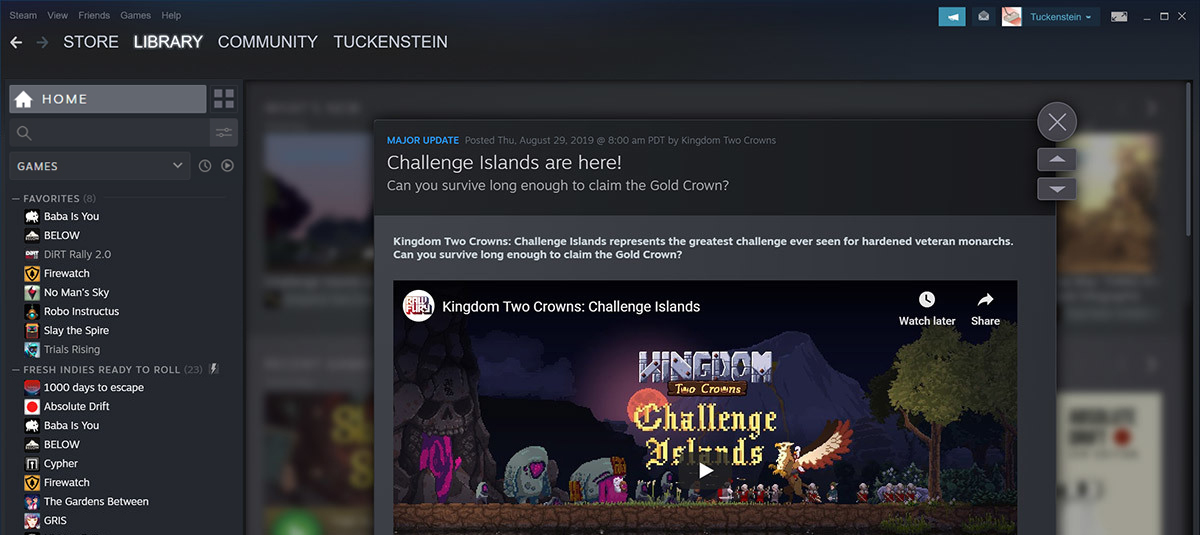
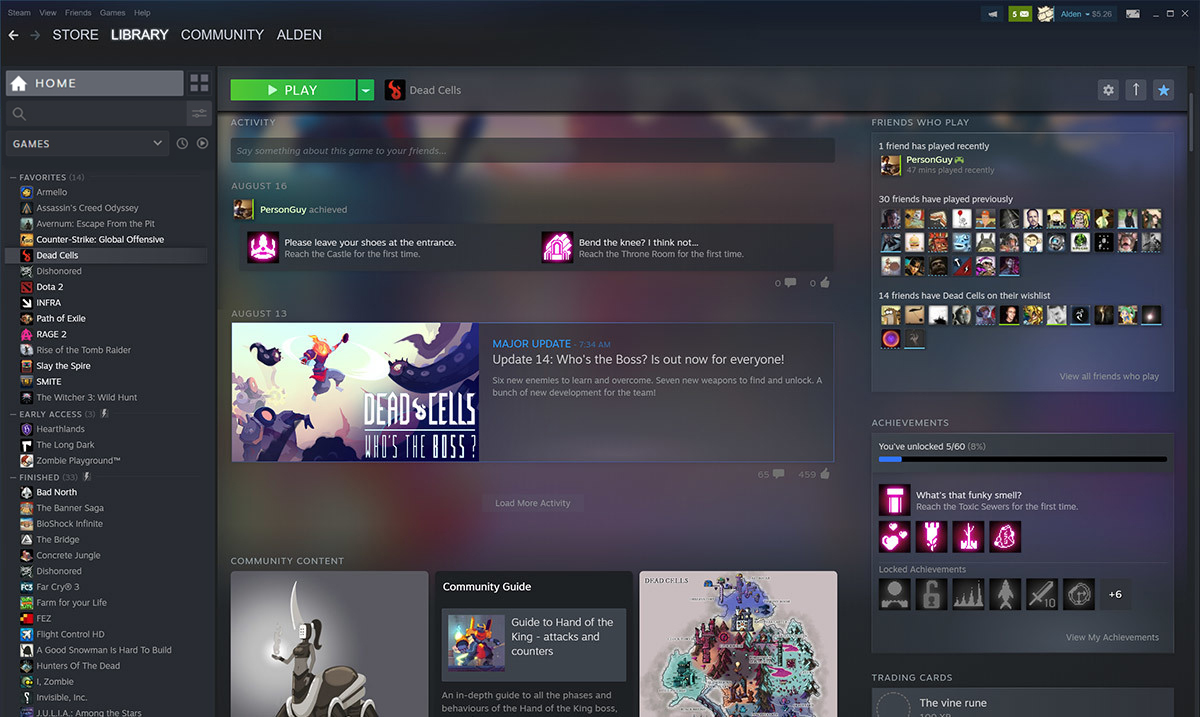
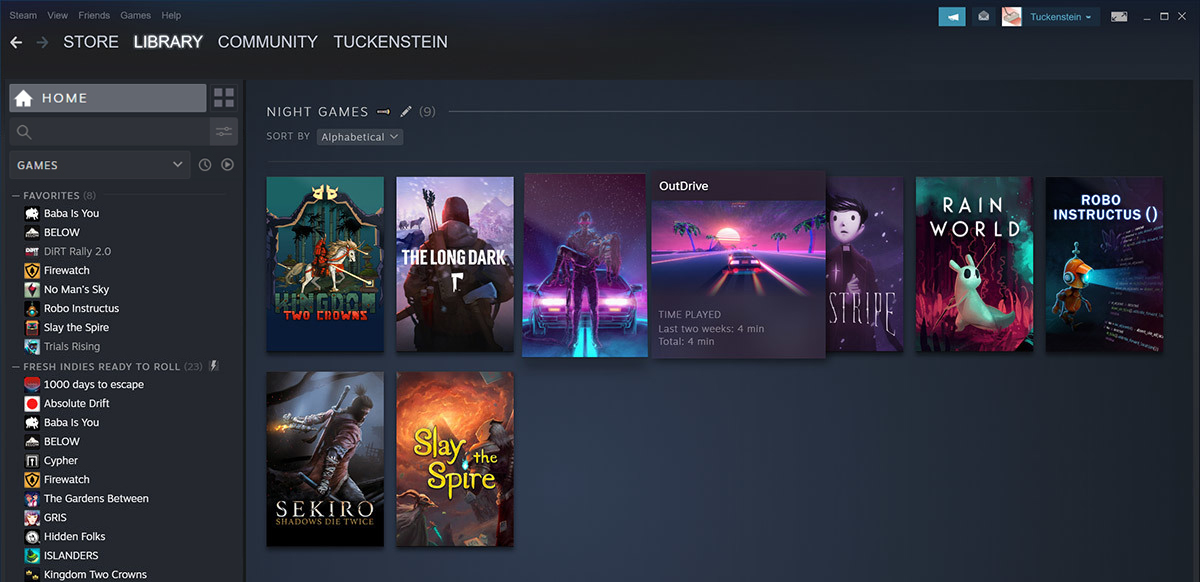
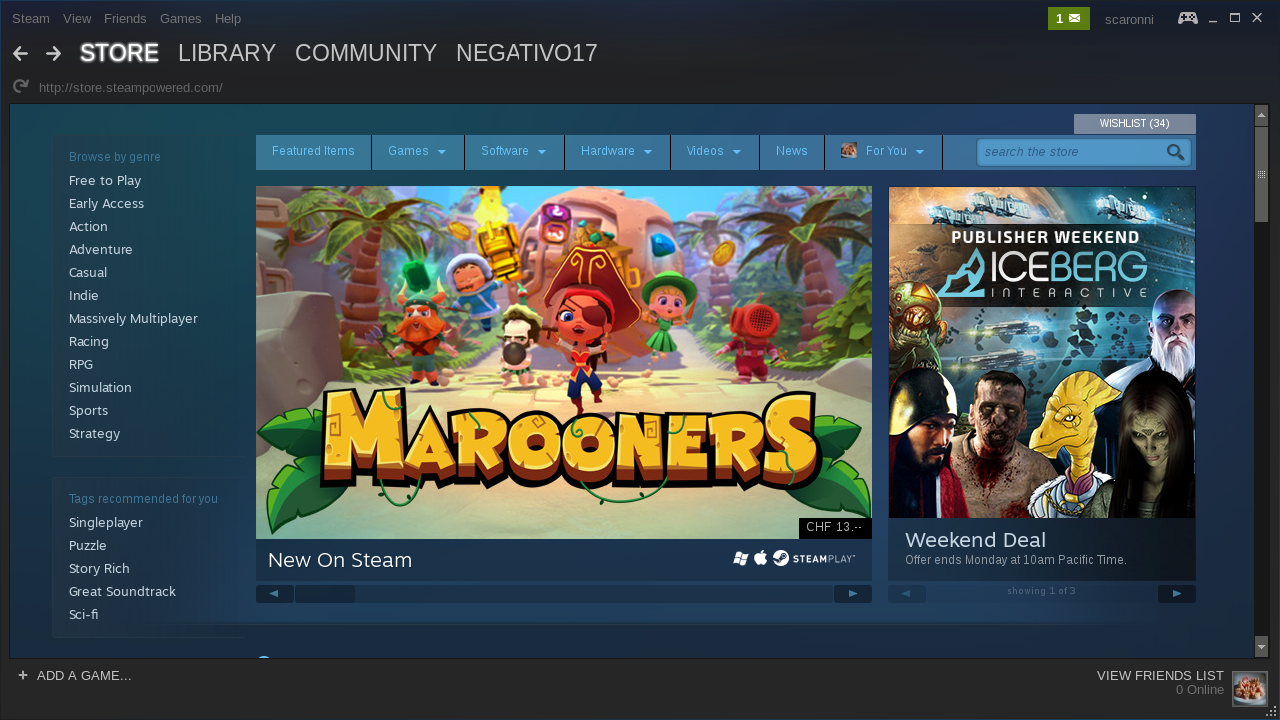
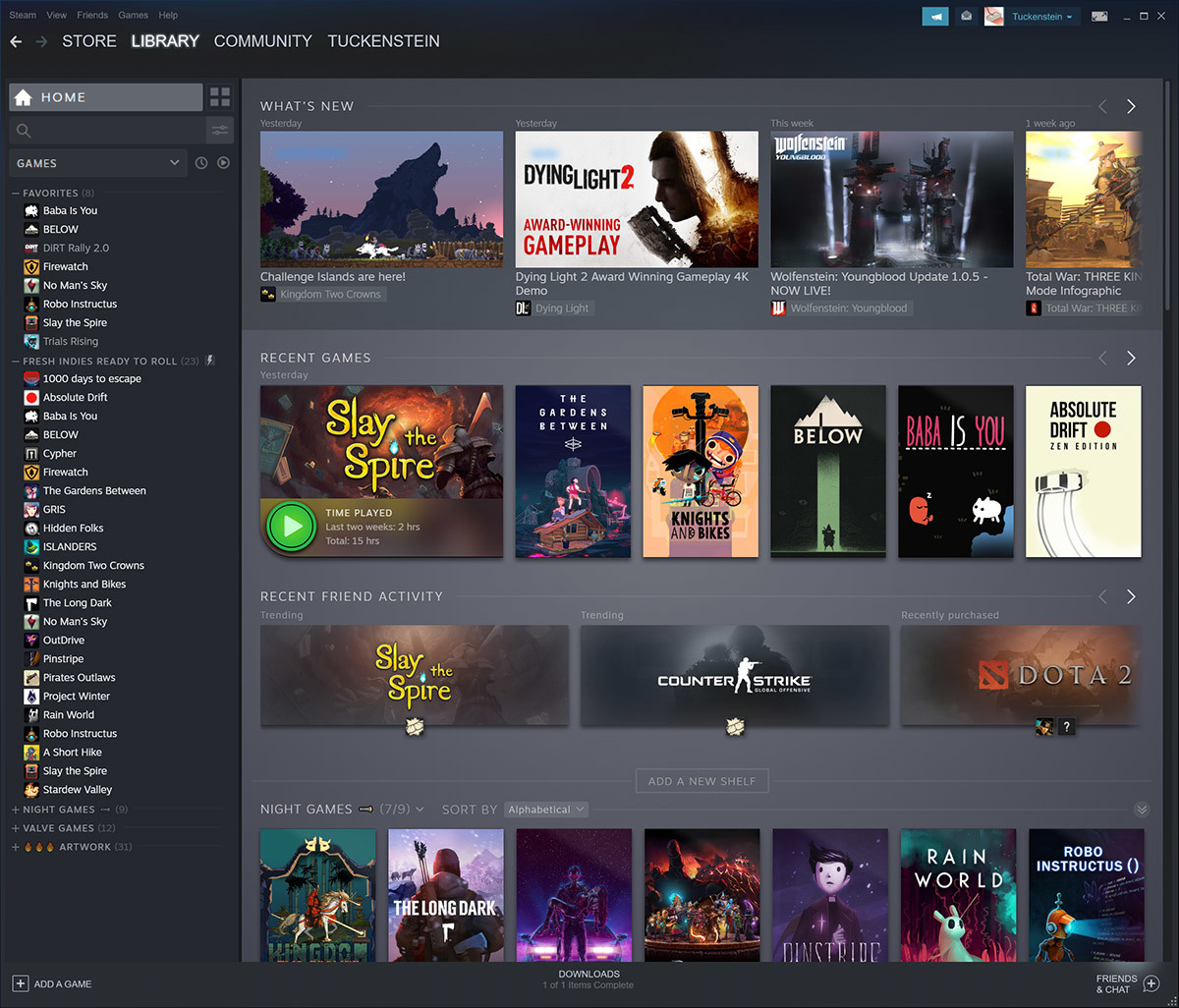
An in-depth editorial review of Steam for Linux. Discover how this powerful launcher brings your PC gaming library directly to your open-source desktop.
The Steam Linux game launcher has fundamentally redefined what it means to be a PC gamer on an open-source operating system. Developed by Valve Corporation, this software distribution service acts as a centralized ecosystem for digital entertainment, delivering seamless access to thousands of titles, community features, and automated system maintenance tools. For Linux users, it serves as the ultimate gateway to high-performance gaming without the traditional headaches of manual configuration.
What is the Steam Linux Game Launcher?
At its core, the Steam Linux game launcher is a sophisticated storefront and management console. Rather than forcing users to manually download patches, configure dependencies, or manage screenshots across various directories, this platform consolidates your entire hobby into a single, highly optimized interface. It bridges the gap between hardware and software, making desktop gaming on open-source platforms as straightforward as it is on any dedicated console.
Key Features of the Platform
- Automated Game Management: Enjoy hassle-free, automatic installations and background updates that keep your titles ready to play at a moment's notice.
- SteamCloud Synchronization: Savegames, settings, and custom configurations are backed up to the cloud automatically, allowing you to resume your progress on any compatible device.
- Social and Community Hubs: Unlock achievements, capture and share high-resolution screenshots, and connect with millions of players worldwide through integrated chat and matchmaking services.
Optimizing Your Storage Configuration
For power users running the community-packaged Flatpak version, managing library locations across multiple drives requires a quick configuration step. Because this package runs in a sandboxed environment to protect your system's integrity, you must explicitly grant the application permission to access secondary storage paths. You can easily achieve this by executing a simple override command in your terminal terminal:
flatpak override --user --filesystem=/path/to/your/Steam/Library com.valvesoftware.Steam
Once executed, your custom directories will be fully visible within the interface, allowing you to distribute your storage load efficiently across solid-state drives and secondary hard disks.
Is the Steam Linux Game Launcher Right for You?
If you are running an open-source desktop environment and want a reliable, feature-rich platform to manage, launch, and play your digital collection, this utility is indispensable. It successfully removes the complexity of modern PC gaming, letting you focus entirely on the experience. To explore the platform and begin building your library, head over to the official Flathub store page to check out the application package details.